STEM & Learning

Best Robotics Kits for Kids of 2026

Robotics kits make a big promise: hand a kid a box of parts and an afternoon later they've built something that moves, blinks, and answers to them. The letdown usually arrives the same night — a build only an adult can follow, an app that won't pair, a robot that runs one demo before it gets parked on a shelf. A good kit closes the gap between the box art and the following Tuesday: the kid can build it themselves, and it's worth building again.

I've assembled plenty of these at my kitchen table with a seven-year-old and a ten-year-old, and the pattern holds — the kits they went back to weren't the ones with the most sensors. Over six months we worked through 12 kits, from snap-together sets to programmable builds that need a tablet. Instructions beat parts count every single time, and it's worth checking what a kit demands before you wrap it: some want four AA batteries and a device your family may not own. The ones below survived after-school builds, sleepovers, and one tumble off the table.

#1

Makeblock mBot Robot Kit

Makeblock mBot Robot Kit

First coding robot

Doodle Score 9.2/10
Check Price

Worth Noting

  • Bluetooth pairing is the weakest link
Coding
Scratch blocks and Arduino
Battery
Lithium-ion pack
Build Time
About 15 minutes
Recommended Age
8 years and up
Read the full review

Fifteen minutes is the number we keep coming back to. The mBot's frame, motors and wheels go together in about that long, so a kid reaches a working robot in one sitting and the good part — driving it, stopping it short of a wall, following a line — happens on day one rather than after three evenings of snapping bricks. The metal and plastic chassis feels like a small machine rather than a toy, and it survives being carried from the table to the floor and back.

What earns it the top spot is the second act. The drag-and-drop coding is genuinely approachable — a handful of blocks and the robot moves — and the same board then accepts Arduino code, so a nine-year-old and a fourteen-year-old can work on one robot at different depths. Nothing else here spans that range. The open frame also takes add-on packs, which means the robot a kid masters in March has somewhere to go by summer.

The eight-and-up guidance is honest about the build and a little optimistic about the coding. Nothing here is beyond a third-grader working with blocks, but the move to Arduino comes with a real reading load, and that's the step where you sit down next to them. It's a short step, and it's where most of the value in this kit actually lives. The finished robot is also small enough to keep on a shelf between sessions, which matters more than it sounds for anything a kid is supposed to come back to.

Bottom line: We recommend the mBot as the default robotics kit: it builds in a sitting, then carries a child from drag-and-drop blocks to Arduino on the same chassis.
#2

Sillbird 5-in-1 Robot Kit

Sillbird 5-in-1 Robot Kit

Brick-loving builders

Doodle Score 9.2/10
Check Price

Worth Noting

  • One model at a time; a rebuild starts over
Models
5 in 1
Pieces
488
Battery
Rechargeable
Control
App and physical remote
Read the full review

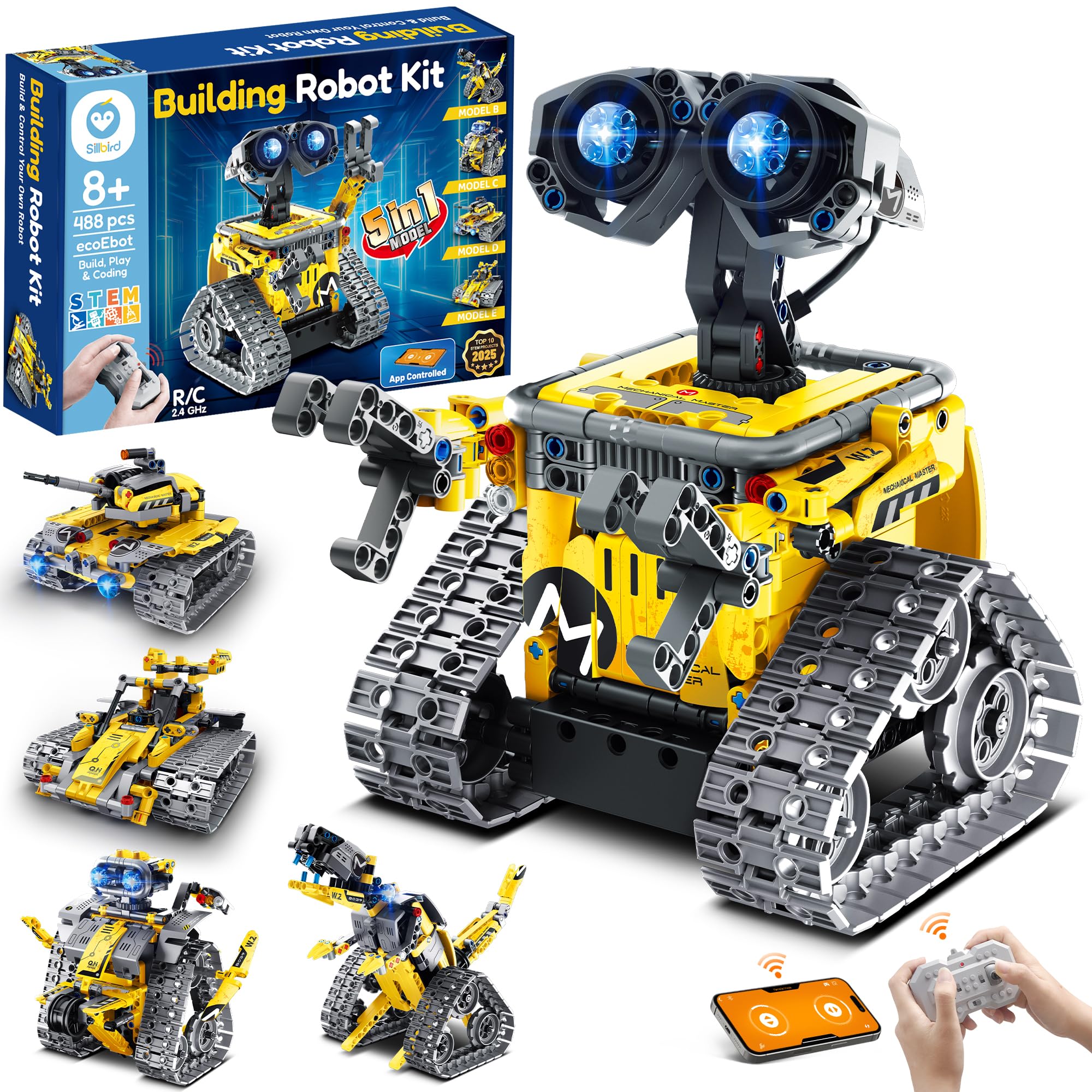
Four hundred and eighty-eight pieces build five different machines, and the instructions take them one at a time in rising difficulty — the robot first, then the more involved builds. If your kid already builds bricks for fun, nothing about this needs explaining: same studs, same firm push to seat a piece, same satisfaction when the head finally goes on.

Control comes two ways. The physical remote needs no pairing and no phone, so the robot drives the moment the last piece is pressed home; the app adds path drawing and a little block programming on top. We treat the app as the bonus and the remote as the feature, because the remote is the thing that gets picked up off the shelf a month later.

What we like most is the pacing. Five models with the difficulty stepped up front-loads the easy wins: a young builder finishes the first robot and immediately wants the next, which is not how a single-model kit behaves. The rechargeable pack keeps it off the battery drawer, and the brick format means a lost piece is a small drama rather than the end of the project. It's a building toy first and a robot second, and for a certain kind of kid that's the right order to meet them in.

Bottom line: We recommend the Sillbird for kids who already love bricks: five models, a remote that works without a phone, and a build that pays off in an evening.

#3

Henoda App-Controlled Robot

Henoda App-Controlled Robot

Budget app driving

Doodle Score 9.2/10
Check Price

Worth Noting

  • Pieces need firm pressure to seat
  • Only one model, so no rebuilding
Power
USB rechargeable
Pieces
468+
Control
App and remote
Movement
360-degree stunt turns
Read the full review

One robot rather than a kit of five. This is a 468-piece humanoid with glowing eyes, poseable hands and a 360-degree stunt turn, bagged in stages so the pieces for each part of the build arrive separately — a small thing that decides whether a build evening runs smoothly or turns into a search through a pile.

Control runs through a phone app with path drawing, voice commands and a tilt mode, plus a conventional remote. We think the app is a nice-to-have rather than the point: the extra modes need a live connection, and when that link is slow the remote is what gets picked up. The robot itself is cheerful and busy-looking, with stickers to apply and light-up eyes that do a lot of the work of making it feel alive.

The build is the real test of the age range. A nine- or ten-year-old can work through the bags with someone nearby, and a younger child will need an adult to keep the stages straight and the parts sorted. That's the honest boundary — it's an eight-plus build in the sense that an eight-year-old can join in, not in the sense that an eight-year-old finishes it alone.

Bottom line: We recommend the Henoda when the budget is tight and the kid wants a robot to drive: it does app and remote play for less than the big kits here.

#4

ELEGOO UNO R3 Robot Car V4

ELEGOO UNO R3 Robot Car V4

Teens who tinker

Doodle Score 9.0/10
Check Price

Worth Noting

  • Instructions thin out at the wiring stage
Camera
Wi-Fi FPV camera
Coding
Arduino IDE
Sensors
Line-tracking and ultrasonic
Recommended Age
12 years and up
Read the full review

The camera is what separates this one from every other kit here. Drive it from the app and you get a live feed from the car's own eye line, which turns a coding exercise into something a kid wants to show someone else. Underneath, it's a real Arduino build — an UNO R3 board, motors, line-tracking and ultrasonic sensors, and example programs you can open, change and upload again. That's the difference, we think, between learning to code and learning to edit someone else's code.

The build is more forgiving than a bare Arduino project. Keyed connectors mean the wires only fit one way, which kills the classic reversed-power mistake, and the parts arrive bagged by assembly stage so the box doesn't collapse into a heap of loose components on the first evening. The instructions are illustrated rather than text-only, and the wiring itself is the lesson — by the time the car rolls, the child has connected a motor driver and a sensor with their own hands.

Where it asks more is debugging. When the car veers left or the line-following stutters, someone has to read the code and move a threshold, and that someone needs to be comfortable with a laptop. The included IR remote gets the car driving before the app is ever opened, which takes the pressure off a first session that could otherwise stall at a pairing screen. That's the fair trade: a kit that gives more and expects more.

Bottom line: We recommend the ELEGOO car for a kid who wants real code and a camera feed; it gives more than any other kit here and asks for an adult who can debug.

#5

TEACH TECH Mech-5 Coding Robot

TEACH TECH Mech-5 Coding Robot

Screen-free sequencing

Doodle Score 9.0/10
Check Price

Worth Noting

  • Runs on two AAA batteries, not rechargeable
Coding
Snap-on coding wheel
Actions
Throw, lift, kick, draw
Battery
2 AAA batteries
Recommended Age
10 years and up
Read the full review

The programming here is a wheel of pegs. Snap the coding buttons onto the wheel in a sequence, fit the wheel to the robot's back, and the machine performs that sequence — throwing, lifting, kicking or drawing depending on which arm you've built. It's the only kit in this group where the code is a physical object a child can hold and rearrange, and watching a plan you set by hand play out is a different pleasure from watching a screen run it.

Everything else is honest snap-together plastic. Two AAA batteries drive it, the part count is modest next to the brick robots, and the build runs to a couple of sessions rather than a weekend. Because the sequence lives on the wheel there's no pairing, no app and no firmware to argue with — the robot does what the pegs say, which is a good first lesson in cause and effect.

The finished robot is compact and shelf-sized, which matters for anything meant to stay in view rather than be packed away, and the drawing arm turns it into something that produces a result — a wobbly circle on paper is a better souvenir than a demo. Ten-plus is the honest age on the box: younger builders will need help pressing the pegs and seating the wheel, and the ceiling arrives when a kid wants the robot to respond to something, because the wheel only replays what was set.

Bottom line: We recommend the Mech-5 for a kid who shuts down at screens: the program is a wheel of pegs they can hold, change and watch run.

#6

BeAndge 6-in-1 Robotics Kit

BeAndge 6-in-1 Robotics Kit

Younger beginners

Doodle Score 9.0/10
Check Price

Worth Noting

  • Instructions vary in clarity across the six builds
Power
Alkaline batteries
Tools
Mini screwdriver included
Builds
6 robot projects
Recommended Age
8 to 14 years
Read the full review

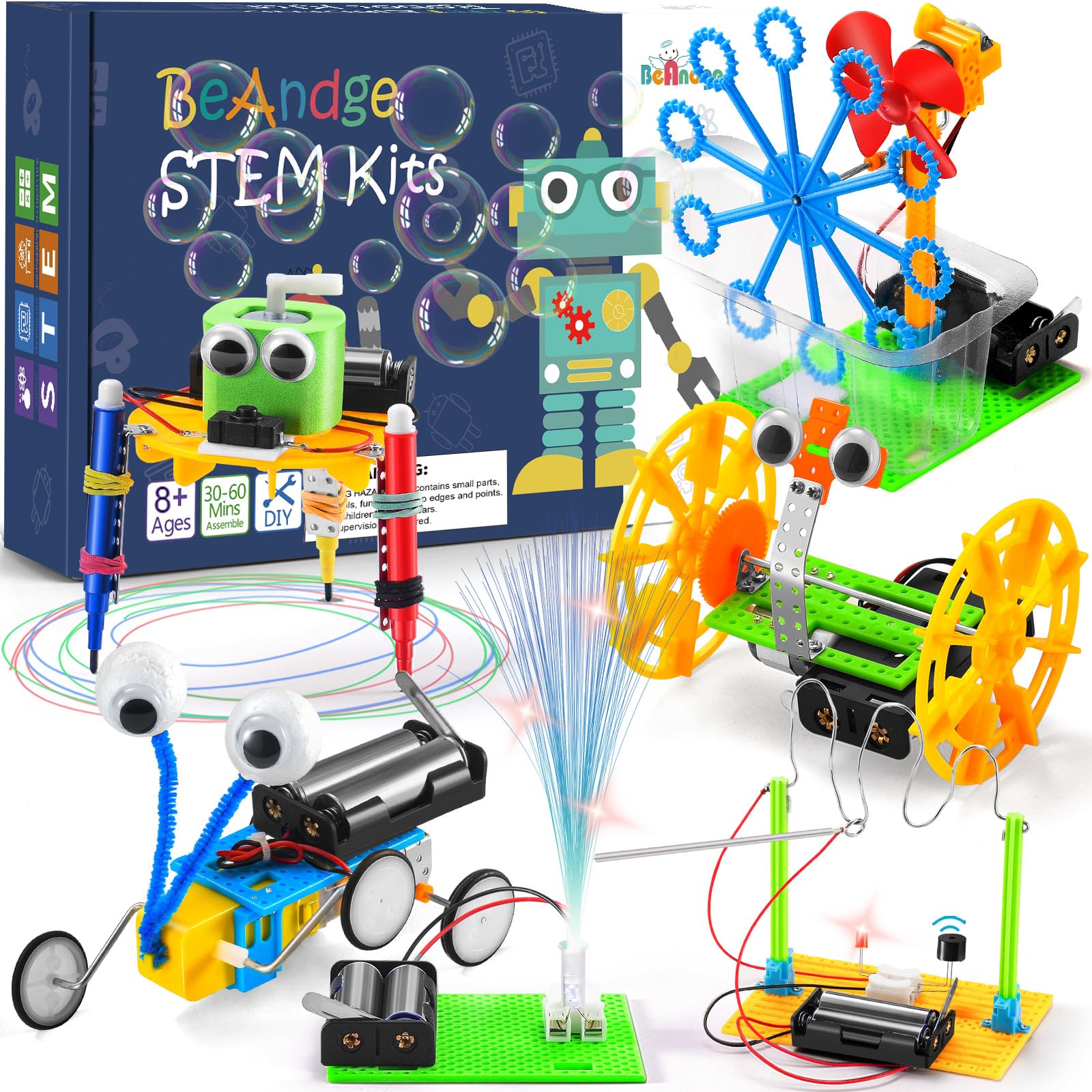
The screws are the first thing anyone notices, and they are tiny. Each of the six projects in this box — a reptile robot, a balance car, a bubble machine, a fibre lamp, a buzzer game and one more — goes together with a mini screwdriver and a lot of fingertip work, so the honest audience is a child with an adult beside them rather than a child left to it.

What that effort buys is six short builds instead of one long one. Every project is a motor, a battery box and a handful of parts, and each one finishes in an evening, so a kid who loses momentum on a big set gets six chances to find the project that hooks them. The builds are more satisfying to complete than to drive afterwards — these are demonstrations of a mechanism, not machines with much play left in them.

None of it is programmable. There's no app and no code, and the closest thing to a robot here is a motorised bug that walks in one direction. Read it as the lowest-cost way to find out whether a kid enjoys wiring a motor to a switch before you spend real money on a coding robot — and if the answer turns out to be yes, the mBot is the sensible next step.

Bottom line: We recommend the BeAndge as a cheap first taste of motorised building: six small projects, real screwdriver work, and no coding to get stuck on.

How We Tested 12 Robotics Kits With Real Kids

Every kit started the same way: the box on the kitchen table at 4 p.m. on a school day, a seven-year-old and a ten-year-old, and no adult hands for the first twenty minutes. We timed how far each kid got alone and noted exactly where they stalled — a step with no picture, a connector that only fits one way but isn't labeled — then watched whether the manual let them recover or whether they called for me.

Our shortlist came from spec sheets first. We filtered out kits that needed a phone the kid doesn't have, kits whose builds topped out at a single demo, and anything priced well past what the parts justify. That left 12 kits, used over six months. Assembly was judged on the second build rather than the first: we took every robot apart after a week and handed it back to see whether the instructions held up without me. Afterward we asked each kid to explain what the robot was doing and why, since the educational part is whether they can tell you, not whether the box says STEM.

Functionality and connectivity got tested on our home Wi-Fi, then with the tablet carried into the next room — a robot that disconnects the moment a kid walks away isn't one they'll keep using. We counted pairing attempts, dropped connections, and how much of the app assumed an adult was driving it.

Quality surfaced later: we checked joints and motor mounts after each rebuild, watched for cracked plastic and stripped gears, and noted which robots ended up on a shelf as display pieces versus in the bottom of the toy bin. Value came down to hours of play per dollar; gift-readiness to what's actually in the box, including batteries, cables, and whether a family needs to supply a tablet. The winners were the ones kids rebuilt without being asked.

How to Choose Robotics Kits for Kids

Coding, app modes, or a sequence of pegs

Robots sold to families sit at three levels. At the top, a kit with a block editor or a real IDE lets a child change what the robot does — the mBot's Scratch-style blocks and the ELEGOO's Arduino code are the two clearest examples here. In the middle sits an app with a handful of preset modes: drive, draw a path, tilt to steer. At the bottom is a mechanical program, like the Mech-5's pegs, which replays a fixed sequence.

The trap is the word programmable. If the listing doesn't name a block editor or an IDE, assume the programming is a short list of modes, which is fine for driving and thin for learning. Settle which level your kid will actually use before you compare anything else.

Match the piece count to patience

Piece counts here run from a modest snap-together build to 488 parts, and the number that matters is how many evenings the build takes, not how impressive the box looks. A 488-piece model is a multi-session project; a small motor kit is an evening. Fine-motor demand matters just as much — tiny screws and stiff studs are where a younger child checks out and an adult takes over.

Our rule of thumb: if the child needs help seating pieces, plan to be there for the whole build, not just the start. Age ranges on the box describe hand skills rather than interest, so they're a floor, not a promise.

What the kit does after the first build

Almost every kit is fun for a weekend; the difference shows in week three. Rebuildable sets and kits with a second coding level keep giving, while a single-model robot is finished when the last piece goes on. Add-on packs are the other path — the mBot takes them, which is how a robot bought at eight is still in use at eleven.

If the child has never finished a large set, a five-in-one brick kit is the safer bet than one elaborate model. If they finish everything and ask for harder things, buy for the coding ladder rather than the piece count.

Power, apps and the connection problem

The wireless link is the least reliable part of this category: Bluetooth pairing that drops, apps that lose the robot mid-run, Wi-Fi that behaves on one phone and not another. It's survivable, because most kits fall back to a physical remote or a cable, but check which fallback the kit includes. A remote in the box is worth more than three extra app modes.

On power, rechargeable packs are the better choice for anything driven regularly, since there's no battery drawer to keep stocked. Mechanical kits running on a couple of AAA cells are the low-drama option — nothing to charge, nothing to pair.

Frequently Asked Questions

Final Verdict

The mBot is the kit we point to first. It's the one that gets a child from building to coding without changing robots, and the block-to-Arduino ladder means a kit bought at eight is still working at twelve.

Buy the ELEGOO instead if the child is twelve or older and wants a camera and real code — it gives more and expects more. For a kid who lives in bricks, the Sillbird's five models are the easier sell.